🚀 From Zero Visibility to Full Observability: Monitoring Docker Infrastructure with Prometheus and Grafana
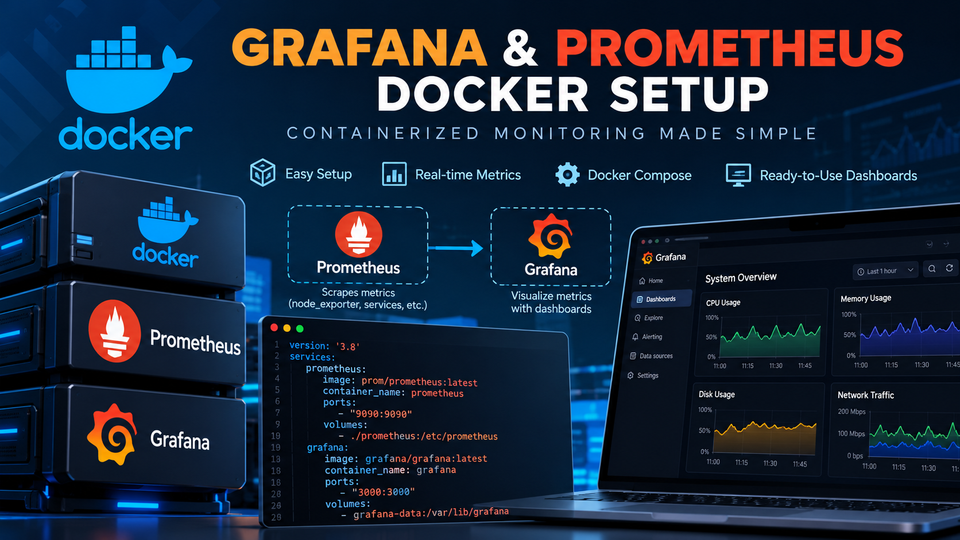
A Practical DevOps Guide to Building a Real-Time Infrastructure Monitoring Stack Using Docker Compose, Prometheus, Node Exporter, and Grafana
Introduction: You Can't Fix What You Can't See
Imagine this scenario.
It's 2:00 AM. Your production application suddenly becomes unresponsive. Users are complaining, transactions are failing, and your infrastructure team is scrambling to identify the root cause.
Is it CPU saturation? Memory exhaustion? Disk utilization? Or perhaps a server that quietly stopped responding?
Without proper monitoring, troubleshooting becomes a guessing game.
As infrastructure engineers, we need more than servers that are simply running. We need visibility into how our infrastructure behaves over time.
This is where Prometheus and Grafana come into play.
In this tutorial, we'll build a lightweight yet powerful monitoring solution using Docker Compose.
By the end, you'll have a working monitoring stack capable of:
- Collecting real-time CPU, memory, disk, and network metrics.
- Monitoring Linux server health using Node Exporter.
- Storing time-series metrics in Prometheus.
- Visualizing infrastructure performance in Grafana.
- Importing a professional infrastructure dashboard.
- Understanding basic PromQL queries.
- Preparing your environment for production monitoring and alerting.
And the best part?
You can deploy the entire stack using a single Docker Compose command.
1. Understanding the Monitoring Architecture
Before deploying containers, let's understand how everything connects.
Our monitoring stack consists of three primary components.
Prometheus — The Metrics Engine
Prometheus is an open-source monitoring and time-series database.
It periodically collects metrics from configured endpoints using an HTTP-based pull model.
Think of Prometheus as the engine responsible for collecting and storing infrastructure performance data.
For example:
node_cpu_seconds_totalThis metric tracks the cumulative CPU time spent in different operating modes.
Node Exporter — The Infrastructure Sensor
Node Exporter exposes Linux operating-system metrics, including:
- CPU utilization
- Memory availability
- Filesystem usage
- Disk I/O
- Network traffic
- System uptime
It exposes these metrics through an HTTP endpoint, normally on port 9100.
Grafana — The Visualization Layer
Grafana transforms raw metrics into meaningful dashboards.
Instead of manually analyzing thousands of metrics, you can visualize your infrastructure using interactive charts, gauges, and time-series graphs.
Our monitoring architecture:
              LINUX DOCKER HOST
                      |
                      |
               Node Exporter
                  Port 9100
                      |
                      | HTTP Metrics
                      v
                 Prometheus
                  Port 9090
                      |
                      | PromQL Queries
                      v
                   Grafana
                  Port 3000
                      |
                      v
             Infrastructure Dashboard
                      |
          +-----------+-----------+
          |           |           |
         CPU        Memory       Disk
          |           |           |
          +-----------+-----------+
                      |
               System Visibility
Important concept: Grafana queries Prometheus for metrics. Prometheus scrapes Node Exporter, while Node Exporter collects metrics from the Linux host.
This separation makes the architecture scalable and relatively easy to maintain.
2. Prerequisites
For this tutorial, we'll use a Linux server with Docker installed.
Recommended lab specifications:
| Component | Recommendation |
|---|---|
| Operating System | Ubuntu 22.04/24.04 or compatible Linux |
| CPU | 2 vCPU |
| RAM | 4 GB |
| Storage | 20 GB |
| Docker | Recent Docker Engine |
| Docker Compose | Docker Compose v2 |
| Prometheus | Port 9090 |
| Grafana | Port 3000 |
| Node Exporter | Port 9100 |
These specifications are suitable for a small lab. Production sizing depends on the number of monitored targets, metric cardinality, scrape intervals, and retention requirements.
Verify Docker
Run:
docker --version
docker compose version
If Docker isn't installed, follow the official Docker Engine installation instructions for your Linux distribution.
3. Create the Monitoring Project
We'll organize our monitoring environment using a simple directory structure.
sudo mkdir -p /opt/monitoring/{prometheus,grafana/provisioning/datasources}

cd /opt/monitoring
Our project structure will look like this:
/opt/monitoring/
│
├── docker-compose.yml
│
├── prometheus/
│   └── prometheus.yml
│
└── grafana/
    └── provisioning/
        └── datasources/
            └── prometheus.yml
Keeping configurations separate from the container definitions makes the deployment easier to maintain.
It also allows us to version-control configuration changes using Git.
4. Deploy Prometheus, Grafana, and Node Exporter
Create the Docker Compose file:
nano docker-compose.ymlAdd the following configuration:
services:

  prometheus:
    image: prom/prometheus:v3.7.0
    container_name: prometheus
    restart: unless-stopped

    command:
      - --config.file=/etc/prometheus/prometheus.yml
      - --storage.tsdb.path=/prometheus
      - --storage.tsdb.retention.time=15d

    volumes:
      - ./prometheus/prometheus.yml:/etc/prometheus/prometheus.yml:ro
      - prometheus_data:/prometheus

    ports:
      - "127.0.0.1:9090:9090"

    networks:
      - monitoring

  node-exporter:
    image: prom/node-exporter:v1.9.1
    container_name: node-exporter
    restart: unless-stopped

    command:
      - --path.rootfs=/host
      - --path.procfs=/host/proc
      - --path.sysfs=/host/sys

    volumes:
      - /:/host:ro,rslave

    pid: host

    networks:
      - monitoring

  grafana:
    image: grafana/grafana:12.2.0
    container_name: grafana
    restart: unless-stopped

    environment:
      - GF_SECURITY_ADMIN_USER=admin
      - GF_SECURITY_ADMIN_PASSWORD=${GRAFANA_ADMIN_PASSWORD:?Set GRAFANA_ADMIN_PASSWORD}

    volumes:
      - grafana_data:/var/lib/grafana
      - ./grafana/provisioning:/etc/grafana/provisioning:ro

    ports:
      - "127.0.0.1:3000:3000"

    depends_on:
      - prometheus

    networks:
      - monitoring

networks:
  monitoring:
    driver: bridge

volumes:
  prometheus_data:
  grafana_data:
Why use Docker volumes?
Both Prometheus and Grafana store important data.
Prometheus maintains historical metrics, while Grafana stores dashboards, users, and other application settings.
Named Docker volumes preserve this data when containers are recreated.
Security note: This example binds the web interfaces to localhost rather than exposing them publicly. For remote access, use an SSH tunnel or an authenticated HTTPS reverse proxy. In production, pin images to tested versions or immutable digests and upgrade them deliberately.
Configure Grafana credentials
Create a .env file:
nano .envAdd:
GRAFANA_ADMIN_PASSWORD=replace-with-a-strong-unique-passwordProtect the file:
chmod 600 .envDo not commit this file to Git.
5. Configure Prometheus
Create the configuration file:
nano prometheus/prometheus.ymlAdd:
global:
  scrape_interval: 15s
  evaluation_interval: 15s

scrape_configs:

  - job_name: prometheus
    static_configs:
      - targets:
          - prometheus:9090

  - job_name: linux-servers
    static_configs:
      - targets:
          - node-exporter:9100
        labels:
          environment: lab
          team: infrastructure
Understanding the configuration
The scrape_interval determines how frequently Prometheus collects metrics.
In our example, metrics are collected every 15 seconds.
The job_name identifies a group of monitoring targets.
The targets parameter defines which endpoints Prometheus should scrape.
Because our containers share the same Docker network, they can communicate using their service names.
For example:
node-exporter:9100Prometheus resolves this hostname through Docker's internal DNS.
We don't need to hardcode container IP addresses.
Validate the configuration
Run:
docker compose configThis checks the Compose configuration.
After deployment, you can also validate the Prometheus configuration using:
docker exec prometheus \
  promtool check config /etc/prometheus/prometheus.yml
6. Automatically Configure the Grafana Data Source
Rather than manually adding Prometheus through the Grafana interface, we'll use Grafana provisioning.
Create:
nano grafana/provisioning/datasources/prometheus.ymlAdd:
apiVersion: 1

datasources:
  - name: Prometheus
    uid: prometheus
    type: prometheus
    access: proxy
    url: http://prometheus:9090
    isDefault: true
    editable: true
This configuration automatically registers Prometheus as Grafana's default data source.
The URL is:
http://prometheus:9090Notice that we are not using localhost.
Inside the Grafana container, localhost refers to Grafana's own container, not the Prometheus container.
This is one of the most common configuration mistakes when deploying containerized monitoring stacks.
7. Start the Monitoring Stack
Now comes the exciting part.
From /opt/monitoring, execute:
docker compose up -dDocker will download the required images and create the monitoring containers.
Verify their status:
docker compose psExpected output:
NAME            STATUS
grafana         Up
prometheus      Up
node-exporter   Up
Verify Prometheus
Open:
http://localhost:9090If accessing the server remotely, create an SSH tunnel:
ssh -L 9090:127.0.0.1:9090 \
    -L 3000:127.0.0.1:3000 \
    user@your-server
Then visit the URLs from your local computer.
In Prometheus, navigate to:
Status → Target health
You should see two monitoring jobs:
prometheus       UP
linux-servers    UP
The UP status confirms that Prometheus can successfully scrape the configured endpoints.
Verify Grafana
Open:
http://localhost:3000Log in using:
Username: admin
Password: <your configured password>
Grafana is now connected to Prometheus.
Congratulations! Your Docker monitoring stack is operational.