Extending Disk Partitions on Ubuntu: The Old-School

Running out of disk space on Ubuntu is a classic problem — especially on servers or long-running systems.
Modern tools can automate disk resizing, but real Linux control comes from understanding how to extend partitions manually — the old-school way.
This guide walks through extending a disk partition on Ubuntu using traditional Linux tools, without relying on fancy GUIs or cloud automation.
Why Use the Old Way?
Manual partition extension gives you:
- Full visibility of disk layout
- Safer changes on production systems
- Better troubleshooting control
- Confidence when automation fails
If you manage servers, virtual machines, or legacy systems, this knowledge is essential.
Step-by-Step Guide for Extending Disk Partition
- Check the Disk Space
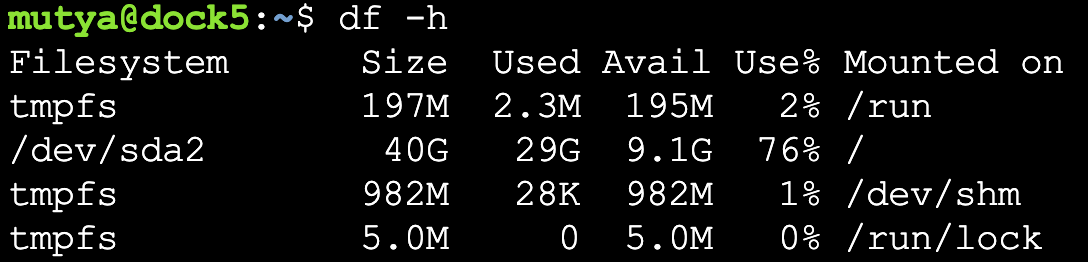
- Run CFDISK.
- Select /dev/sda2.
- Navigate to RESIZE - > WRITE - > yes -> Quit

- Set Partition

- type print (to list the disk)
- type resizepart 2 (/dev/sda2)
- exit
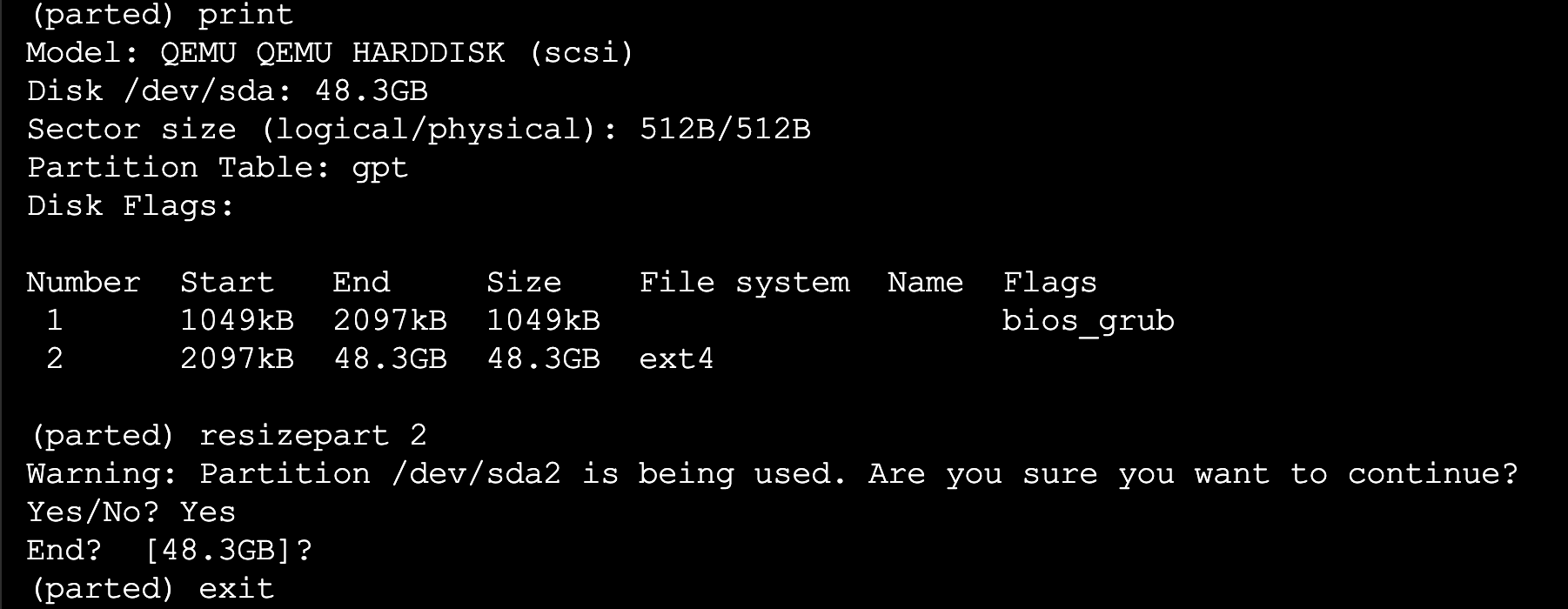
- Resize the /dev/sda2

Thats it. Congratulati0ns!
📣 TL;DR
If you can safely extend a Linux partition using fdisk and resize2fs, you’re already ahead of most users.